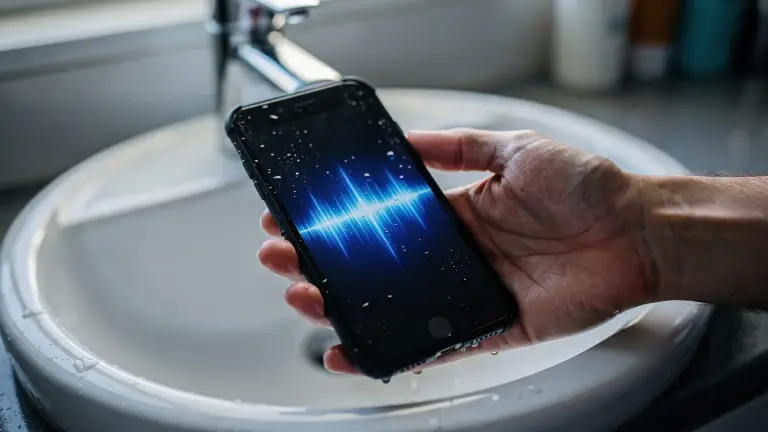

Water Eject is a Siri shortcut that turns the volume up and plays a low 165 Hz tone to vibrate water out of your iPhone’s speaker. It isn’t built into iOS, but you can make it yourself in about two minutes, with no download.
Two short parts: make the shortcut and run it (7 steps), then, if you like, put it on a double tap for one-touch access (4 steps).
Just need the water out right now? Our step-by-step water eject guide uses the free Water Eject website in your browser, no shortcut needed.
Time 2 minutesYou need the Shortcuts appDownload none
How do you make a Water Eject shortcut?
Follow these in order. To add each action, tap Search Actions at the bottom of the screen and type its name.
- Open Shortcuts and tap +. Shortcuts comes with iOS. The + is at the top right of the All Shortcuts screen.
- Add Set Volume and set it to 100%. Tap the percentage in the action to change it.
- Add Get Contents of URL. Tap the URL field and paste our free 165 Hz tone link. Tone link
watereject.live/165hz.m4a - Add Play Sound. It plays the tone from step 3 on its own. Nothing to set.
- Add Set Volume again and set it to 50%. Your next call or song won’t start at full blast.
- Name it Water Eject and tap Done. Tap the name at the top of the screen to rename it.
- Run it. Hold your iPhone with the speaker facing down and tap Water Eject in your shortcuts. A low hum plays for 20 seconds and pushes the water out.
How do you run Water Eject with a double tap?
Back Tap is an Accessibility feature: two taps on the back of your iPhone start the tone, even with wet hands and no screen to tap. These are Apple’s Back Tap steps:
- Open Settings, then Accessibility, then Touch.
- Scroll down and tap Back Tap.
- Choose Double Tap or Triple Tap.
- Scroll to Shortcuts and pick Water Eject. Now a double tap on the back of your iPhone runs it.
You can also say “Water Eject” to Siri, since Siri runs shortcuts by name.
Why isn’t the shortcut working?
The common causes are simple to check:
- The volume is low. The tone needs volume near the top to move water.
- The phone is on silent or a Focus mode. Check the side switch or Action button.
- You hear a short chime instead of the tone. Play Sound didn’t get the file. Check your internet connection and the link in step 3.
- The water isn’t in the speaker. If calls sound bad but music is fine, the earpiece or microphone may be the wet part.
If the speaker still sounds muffled after several runs and a few hours of drying, the cause may be lint or damage rather than water. We cover that in why an iPhone speaker sounds muffled.
Is Water Eject built into the iPhone?
No. Apple doesn’t include a water eject feature on iPhone, and Macworld confirms that Water Eject is not a default shortcut.
The idea comes from the Apple Watch. Its Water Lock feature plays a series of tones to clear water when you hold the Digital Crown. The iPhone has nothing similar, so the community made a shortcut, first shared on RoutineHub years ago.
Is there a faster way?
Yes: a web page. A shortcut takes a couple of minutes to build. A browser tool works straight away, on iPhone, Android, iPad or a laptop.
Want vibration as well as sound? Our iPhone app, Water Eject x Speaker Cleaner, combines both and can test your left and right speakers separately.
| Option | Install | Works on | Extras |
|---|---|---|---|
| Shortcut | Build in 2 min | iPhone | Back Tap, Siri |
| Web tool | None | Any phone | Seven sounds |
| Our app | App Store | iPhone | Vibration, speaker test |
No app needed. The free tool on watereject.live plays a low 165 Hz tone right in your browser, on iPhone, Android or iPad. Nothing to install, nothing to sign up for.
Open the free toolWorks in Safari and Chrome.
What’s next for Water Eject sounds?
More sounds are on the way. At watereject.live labs we’re building 10 new water eject sounds and testing them daily.
They’ll arrive in the free web tool first, next to today’s seven. After that, we’ll publish extra tone links you can drop into step 3 of this shortcut, so your iPhone shortcut gets the new sounds too.
Frequently asked questions
Is the Water Eject shortcut safe?
Yes. When you build it yourself you can see every action: it changes the volume and plays a 20-second tone. Phone speakers are built to play bass, so a short low tone won’t harm them.
Does Water Eject work on iPhone 17?
Yes. Set Volume, Get Contents of URL and Play Sound are standard Shortcuts actions, and Back Tap works on current iPhones. You can also use the web tool instead.
Does Water Eject get water out of the charging port?
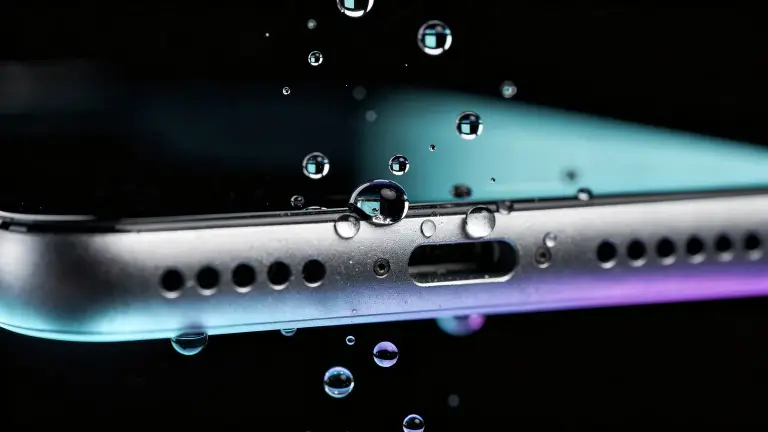
No. Sound only moves water in the speaker grille. For the port, follow the drying steps in our Liquid Detected guide.
My phone went fully underwater. Is the shortcut enough?
No. Dry the phone properly first. Our guide for a phone that fell in water walks you through it, then use the tone for the speaker.